
In a previous post, I presented what the Learning Hub was. I needed one place where my students could find the material that belongs to them without having to search through messages, files, links, or whatever happened to be shared most recently. I also needed a way to publish assignments, organize submissions, run diagnostic testing, share resources, and keep track of what was happening without turning the process into another administrative burden.
The obvious answer would have been to use an existing Learning Management System. But, as I explained before, that comes with its own problems. Who pays for the backend? Who deals with the troubleshooting? More importantly, what happens when the students using it are not familiar with LMSs in the first place?
Digital literacy is still part of the problem. I have students who struggle with accounts and passwords, logging in, understanding error messages, or figuring out whether a problem comes from the website, the browser, the phone, or the connection. Every extra step becomes another place where the process can break down. So instead of adopting a large LMS and adapting my students to it, I built something smaller around the way I actually work with them.
That became the Alamrani English Learning Hub.
Three levels, three separate spaces
The public side of the Learning Hub is organized around the three secondary-school levels I currently need:
Common Core, First Year Bac, and Second Year Bac.
Each level has its own space, so students are not forced to sort through material that does not belong to them. Announcements, assignments, downloadable resources, activities, and tests are presented according to the level they were intended for.
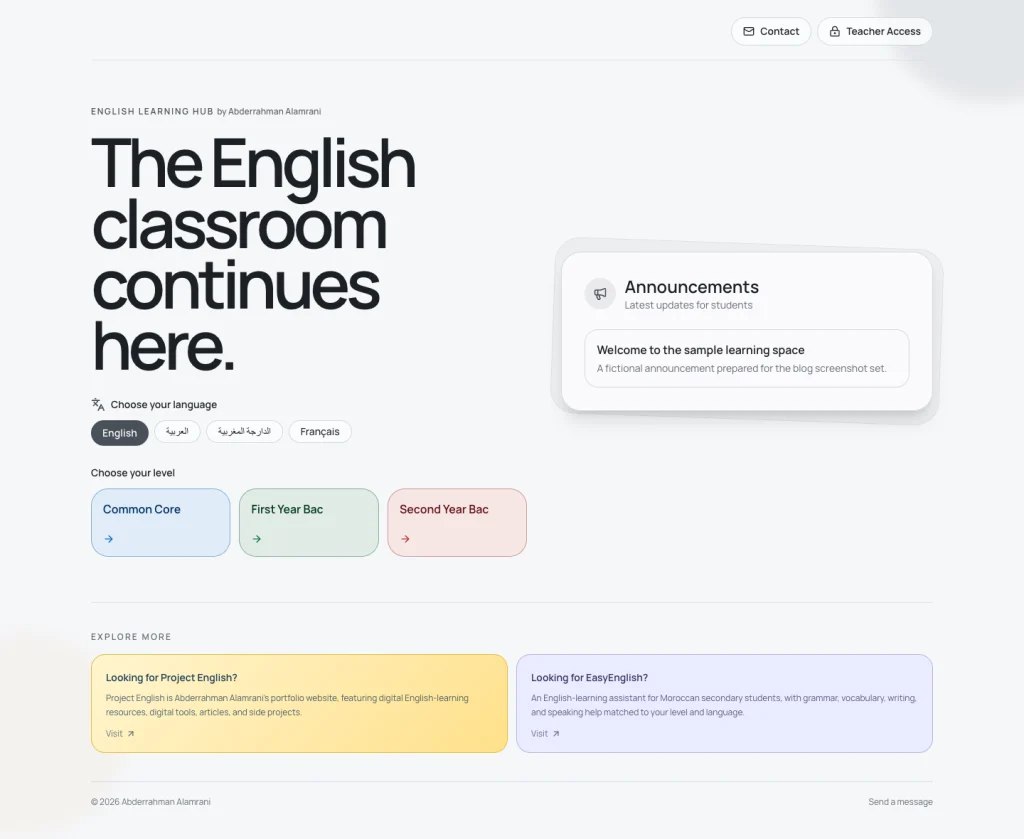
That separation is important because the first thing students encounter is something they already understand: three buttons for three familiar school levels. They do not have to learn how a new platform organizes itself before they can use it. They already know whether they are in Common Core, First Year Bac, or Second Year Bac, so they choose their level and move on.
The homepage keeps the entry point simple. Students choose their level, see the latest information, and move from there.
What students actually see
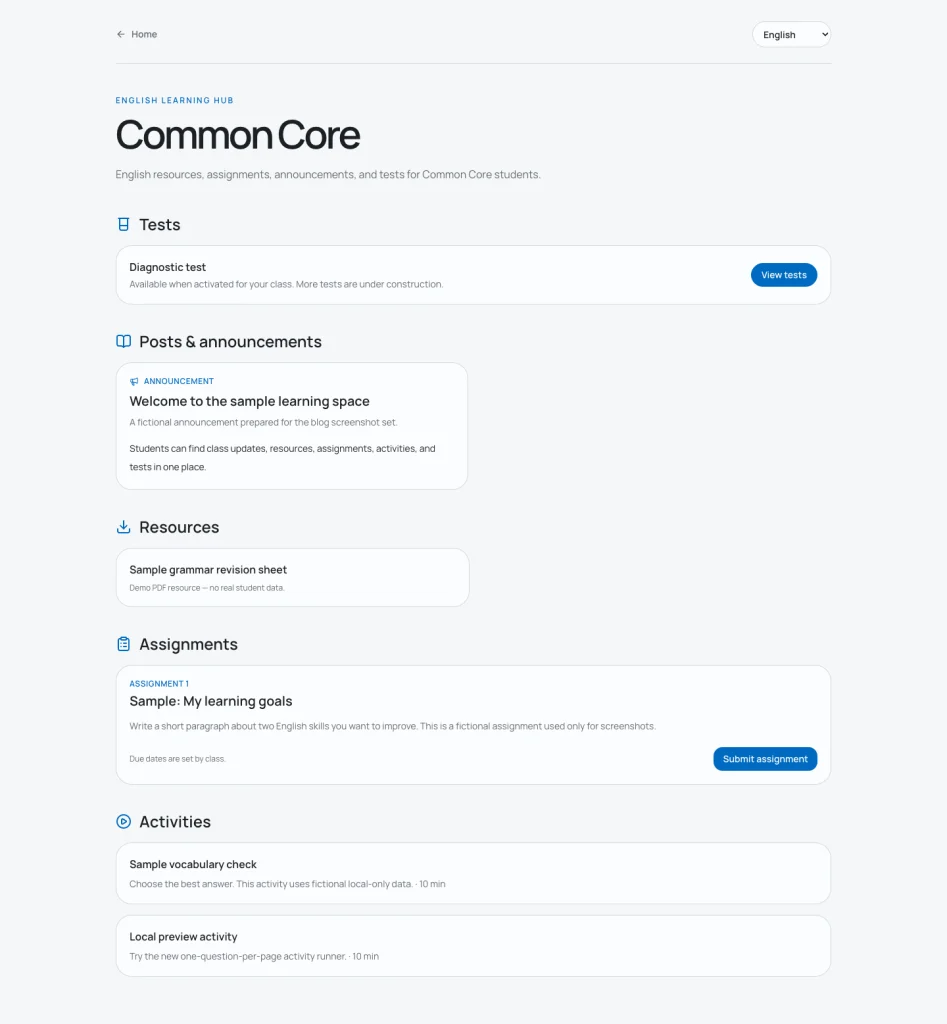
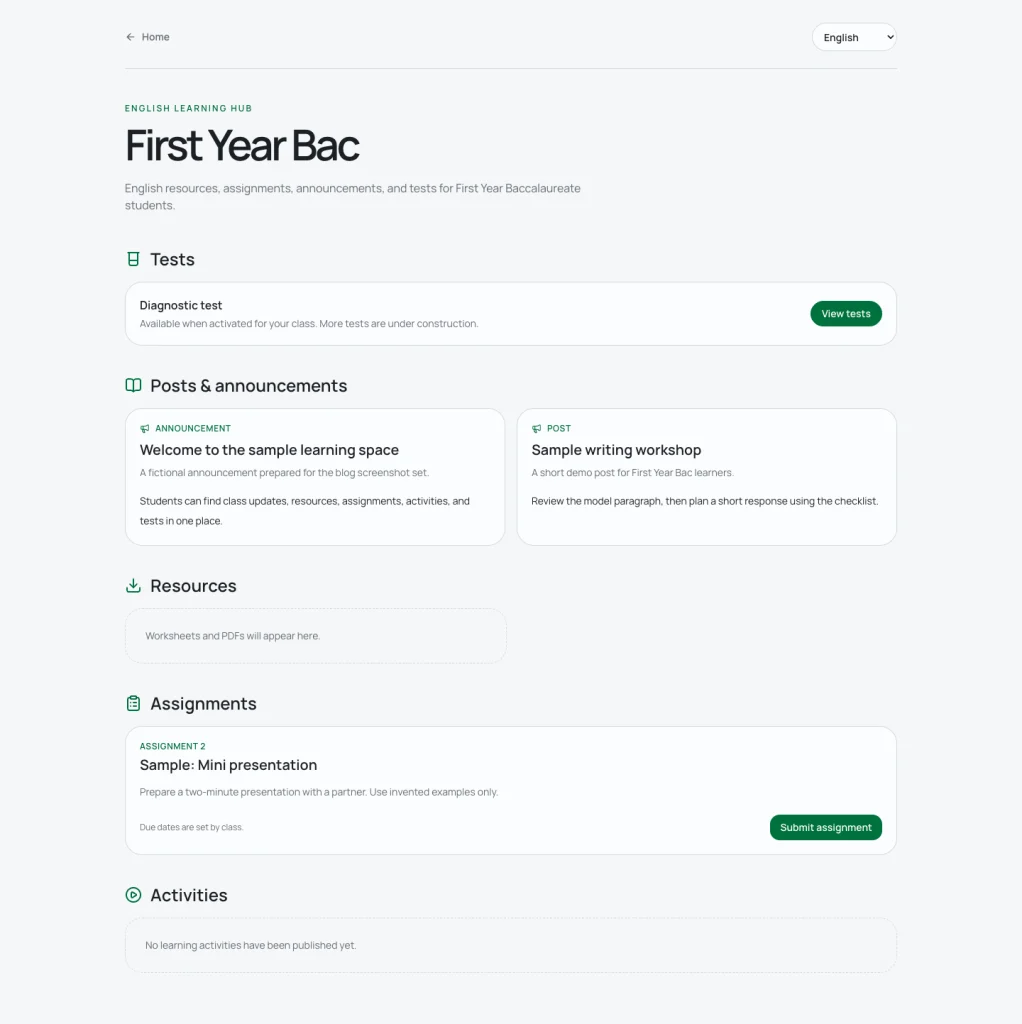
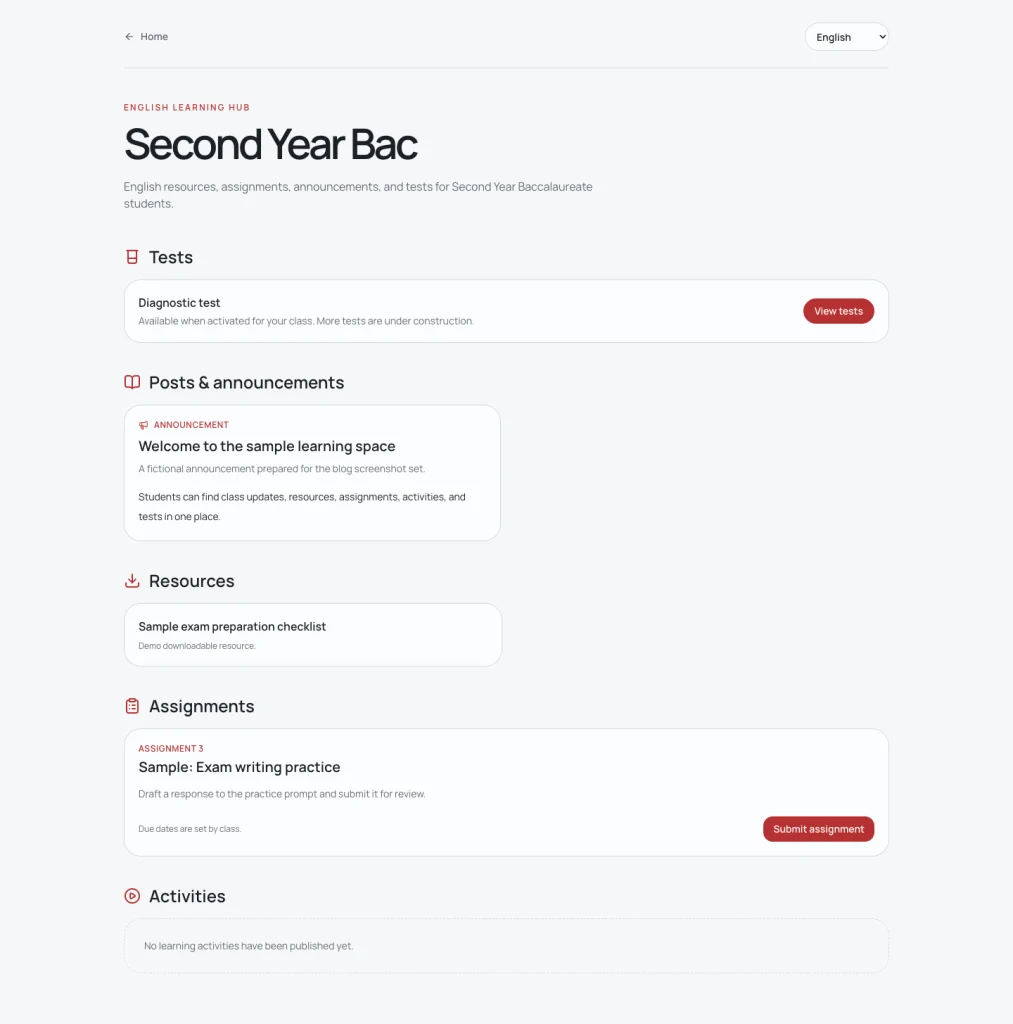
Once inside their level, students can see the work currently available to them.
That includes announcements, downloadable resources, active assignments, learning activities, and diagnostic tests. The point is not to reproduce an entire school online. It is to give students a clear place to find what they need for English.
The entry point itself was never really the problem. It was deliberately obvious: three buttons, three familiar school levels, choose yours and continue. The difficulties appeared after that. Some students did not naturally scroll down, read the short explanations under each section, and work out what the different parts of the page were for. They expected to be guided through each step. Even the homepage explicitly invites visitors to switch to another language if that makes the interface easier to understand, yet some still had trouble doing that without help. That experience reinforced something I had already noticed: using a phone every day is not the same thing as being digitally literate.
And every single one of my students is glued to their phone 24/7.
For example, the Common Core page brings current resources and activities together in one view, while the First Year Bac and Second Year Bac spaces keep their own level-specific material separate.
Assignments without unnecessary complication
Assignments can ask students to type a response, upload a file, or use either option depending on the task. They can also be individual or group assignments, and different classes can have different release times or deadlines.
One decision I made early was not to give students conventional accounts. There is no student-facing account page, username, or password to remember. Considering the problems I have already encountered with passwords, logins, and account management, adding another set of credentials would solve one problem by creating another.
Instead, the Hub already knows who my students are because their records and classes exist in the backend. When a student wants to submit an assignment, they enter their name and date of birth and select their class. The backend checks those details against the existing student roster. If it finds the corresponding record in that class, the student can continue with the submission. If the details do not match an existing record, the submission is blocked.
The class itself helps make that matching more specific. Moroccan school classes already have distinct names, so I can use something students recognize from school rather than inventing another organizational system. A class such as Tronc Commun Sciences Option Français 5, for example, can appear in the Hub under the shorter name TCSF5. Students already know which class they belong to, so the process becomes: enter your name, enter your birth date, choose your class, and submit.
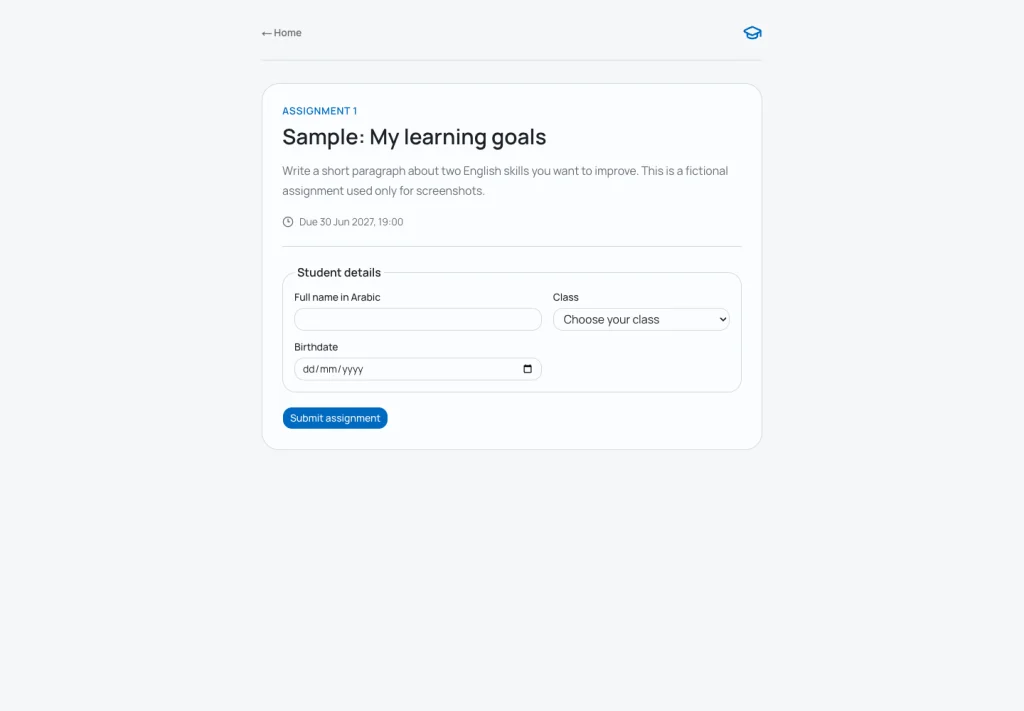
Students open the assignment, read the instructions and deadline, enter their name and date of birth, select their class, and submit a typed response or file. The backend matches those details against the existing class roster, so no student password or account page is required.
This is not necessarily the final version of the identification system either. Moroccan students also have unique numbers assigned to them by the school, and I may eventually incorporate that identifier into the matching process. It could provide another way to distinguish students without forcing them into a conventional username-and-password system.
For now, the important part is that students do not have to create an account before they can do their work. The administrative complexity stays behind the interface. From their side, they find the assignment, identify themselves using information they already know, and submit it.
The features I have baked into the Hub at this point are meant to make that navigation easier, but also to give students a space where they can learn how to navigate something like this for themselves. That is where learner training comes in. I cannot design away every digital-literacy problem, and endlessly holding their hands through every step would defeat part of the purpose. To mitigate the problem, I will have to start by assigning something deliberately simple and showing them how to do it: how to find their level, read what is on the page, follow the instructions, identify themselves, move through the interface, and submit the work.
I am also thinking about adding a proper FAQ page and making it part of the onboarding process. The idea would be to give students somewhere obvious to go when they forget how something works instead of immediately needing someone to walk them through it again. I have not decided exactly how that should work yet, but it would fit the same goal: provide enough guidance at the beginning, then gradually make that guidance something they can consult for themselves rather than something I have to repeat every time.
Learning activities
The Hub also includes interactive learning activities.
These can contain multiple-choice questions, short or extended written answers, identification tasks, grouped prompts, and supporting media. Activities can be timed, and students can see their progress as they move through them.
The student-facing experience is deliberately straightforward, but there is more control behind it. On my side, I can set instructions, timing, opening and closing windows, question order, points, answer information, and feedback, add supporting media where needed, and later review completed attempts and question-level performance.
Where an answer can be checked automatically, the system can include it in an immediate score. That score is not a final grade, and it does not go on the student’s academic record. The assessment side of the Hub is meant primarily to help me and the student identify gaps, see what needs more work, and address those weaknesses. Some activities can provide immediate automated feedback, while others still require me to review what the student has submitted.
None of this replaces formal assessment or the classroom itself. Students still have to attend their classes, and they still have to sit for the tests and assessments they would normally take in class. The Learning Hub is there to make learning, practice, feedback, and additional support more accessible between those lessons, not to turn the website into a substitute for school.
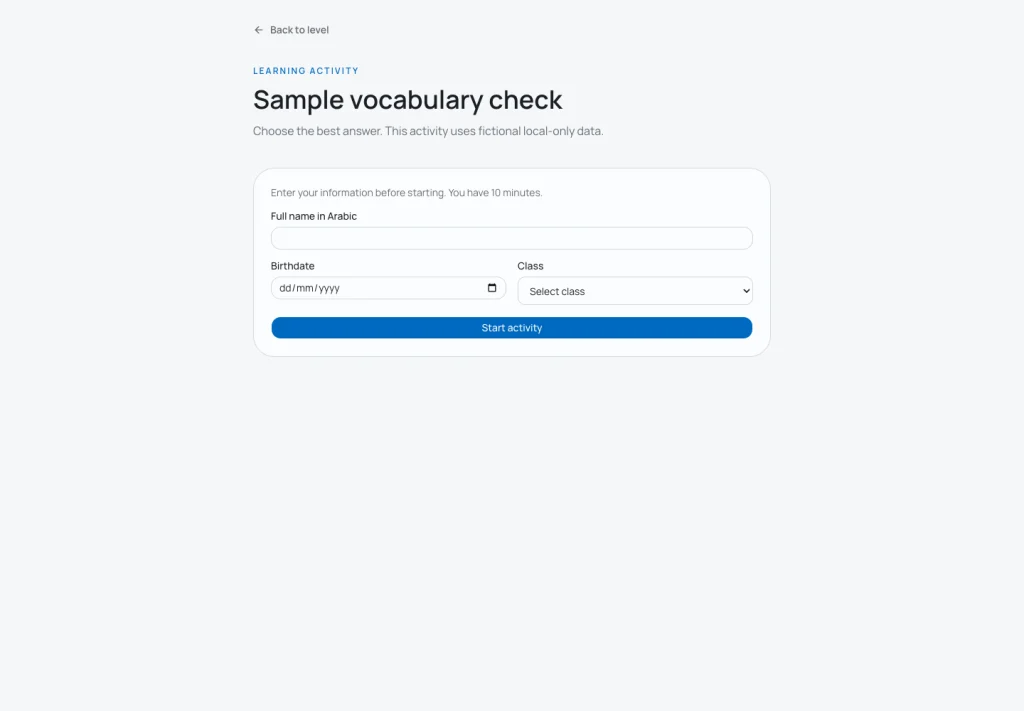
Before starting, students see the title, instructions, time limit, class selector, and identity fields.
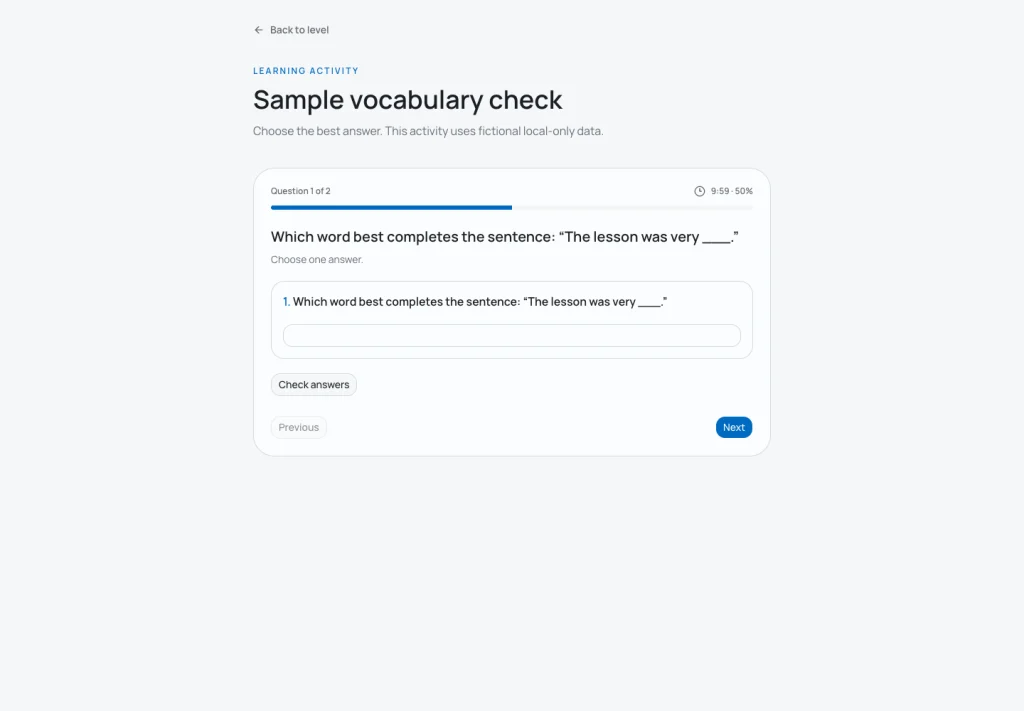
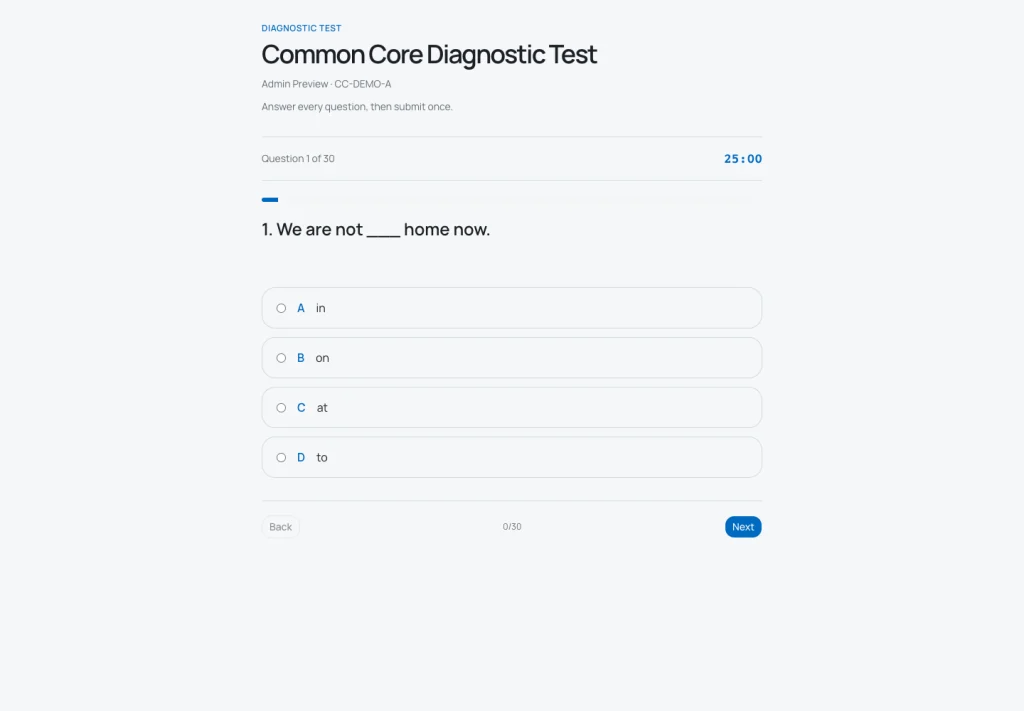
During the activity, students can follow their progress, move through the questions, and see the remaining time.
The point here is not to replace classroom teaching with a browser. These activities give me another format for practice, revision, and assessment when it makes sense to use one.
Diagnostic testing
The diagnostic test is one of the more developed parts of the system.
I can activate it for a class, set a closing time, monitor completion, and review the results from the teacher dashboard. Students enter through their level page, choose their class, and complete the assessment in a guided interface.
The system also prevents duplicate completed diagnostic attempts for the same learner.
I can also preview the diagnostic test privately before using it with students. Preview attempts are kept separate from the real class data, so I can go through the test as a student would without creating a completion or contaminating the analytics. That makes it possible to check the flow, instructions, and questions before opening the assessment to a class.
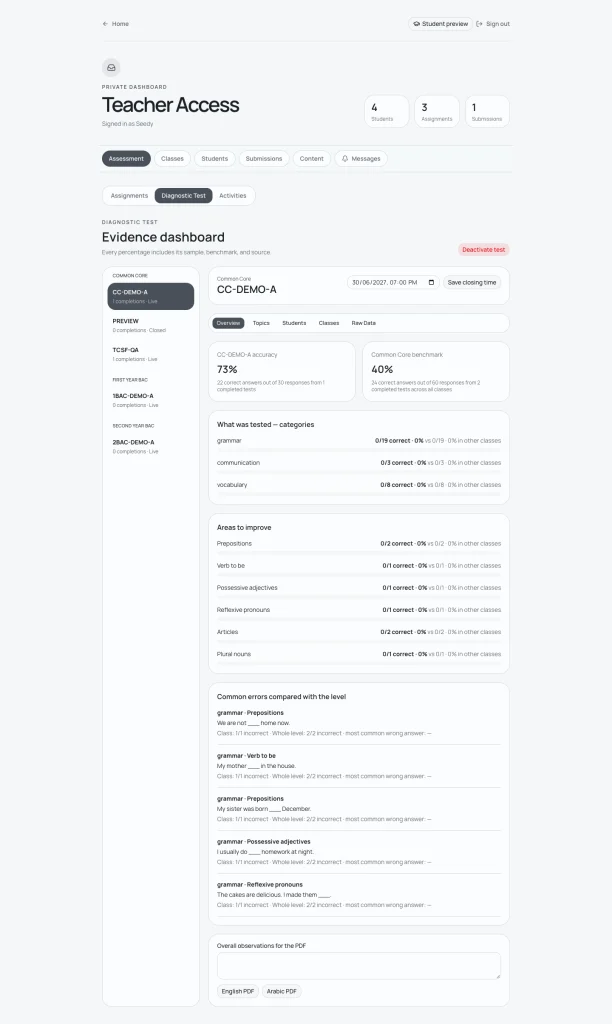
On my side, the results are more useful than a single percentage. The dashboard can show section performance, common errors, participation information, and other details that help make the test useful for planning.
Reports can also be exported, including bilingual English and Arabic PDF reporting.
Useful now, but not finished
The diagnostic test still needs more work before it becomes as useful as I want it to be. I do not consider the current version a finished assessment system, and the numbers it produces are only useful if they help me understand what students actually need.
For now, its biggest advantage is practical. It gives me some necessary insights into performance, common errors, and areas of difficulty without requiring me to correct a pile of individual diagnostic sheets and manually extract the same patterns afterward. That already saves time and makes it easier to see what is happening across a class.
The next step is making those insights more useful, not simply producing more data. The point of the diagnostic test is to help identify gaps that I can actually address in teaching, practice, or additional support. If it cannot help me decide what needs attention next, then adding another chart or another number does not accomplish very much.
Four interface languages
I teach English in Morocco, but English is only one part of the linguistic reality students live in. French is deeply present in everyday life, education, administration, and the way many people interact with written information, while Moroccan Arabic, Darija, is what many students and families actually speak every day. Arabic also remains necessary for obvious reasons. So if the goal is to make the Hub easier to use, it makes little sense to insist that the interface itself must only exist in English.
The Learning Hub therefore supports English, Arabic, Moroccan Arabic (Darija), and French. This is not only for the students. Their parents may need to understand what they are looking at, and someone who is simply curious about the project should not have to know English well enough to navigate the website.
Arabic and Darija use right-to-left layouts where appropriate. This is not about translating the English course itself into four languages. The course is still English. The point is to remove an unnecessary barrier between the user and the material. If someone understands the instructions, buttons, and structure better in French, Arabic, or Darija, they should be able to use that language to navigate.
The language selector will not magically solve the digital-literacy problems I mentioned earlier. I have already seen that simply giving someone the option does not guarantee that they will notice it or know what to do with it. But it removes one more source of friction, and that is the broader design philosophy behind the Hub.
The part students do not need to see
Behind the public site is the teacher dashboard.
Students do not need to understand any of this, and that is intentional. Their job is to open the material and complete the work. Mine is to deal with everything required to make that happen.
The dashboard is where I manage classes and students, publish assignments, review submissions, create activities, activate diagnostic tests, share resources, read messages, and look at results.
This is the part of the Hub that turns it from a collection of webpages into something closer to an LMS.
Managing classes and students
Classes are organized by school level.
I can create classes, activate or deactivate them, maintain student records, and import rosters from CSV or spreadsheet files. Imports include a preview stage so that errors can be caught before anything is committed.
There is also a searchable student roster with account controls.
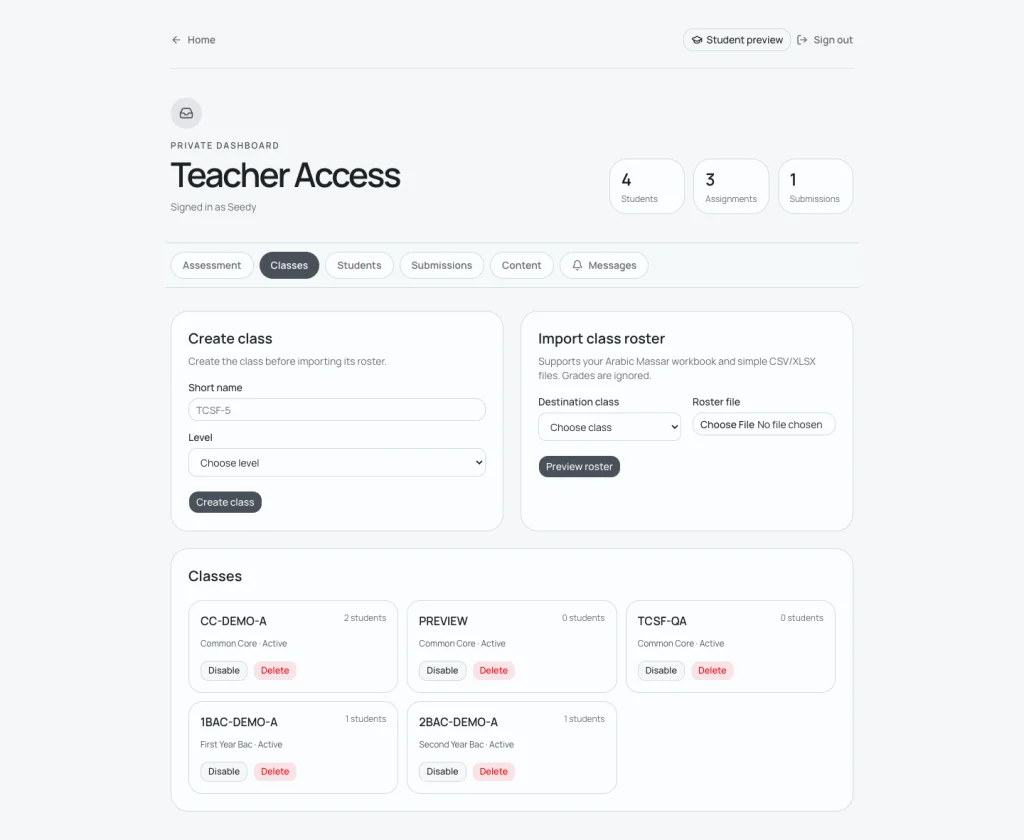
The Classes section manages school levels, active classes, short names, and roster imports.
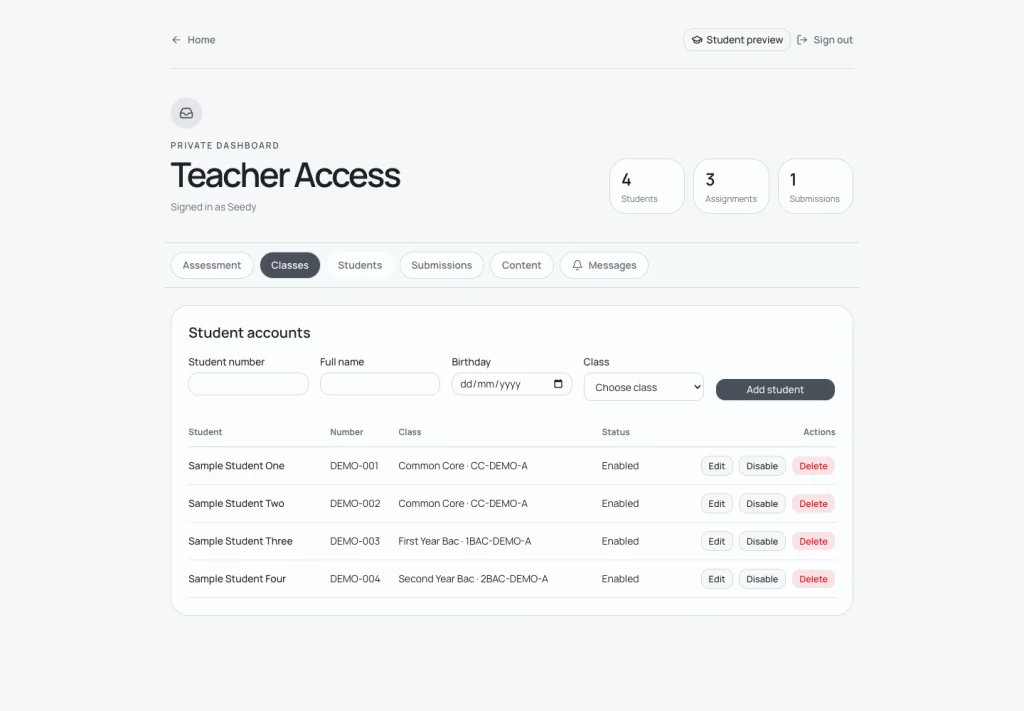
The Students section provides a searchable roster and account controls.
Building and publishing assignments
The assignment workspace gives me more control than the student-facing version needs to expose.
I can set the title, instructions, response format, individual or group rules, accepted files, file-size limits, audience, release time, and class deadline.
Assignments can remain drafts, be scheduled for later, or be published immediately.
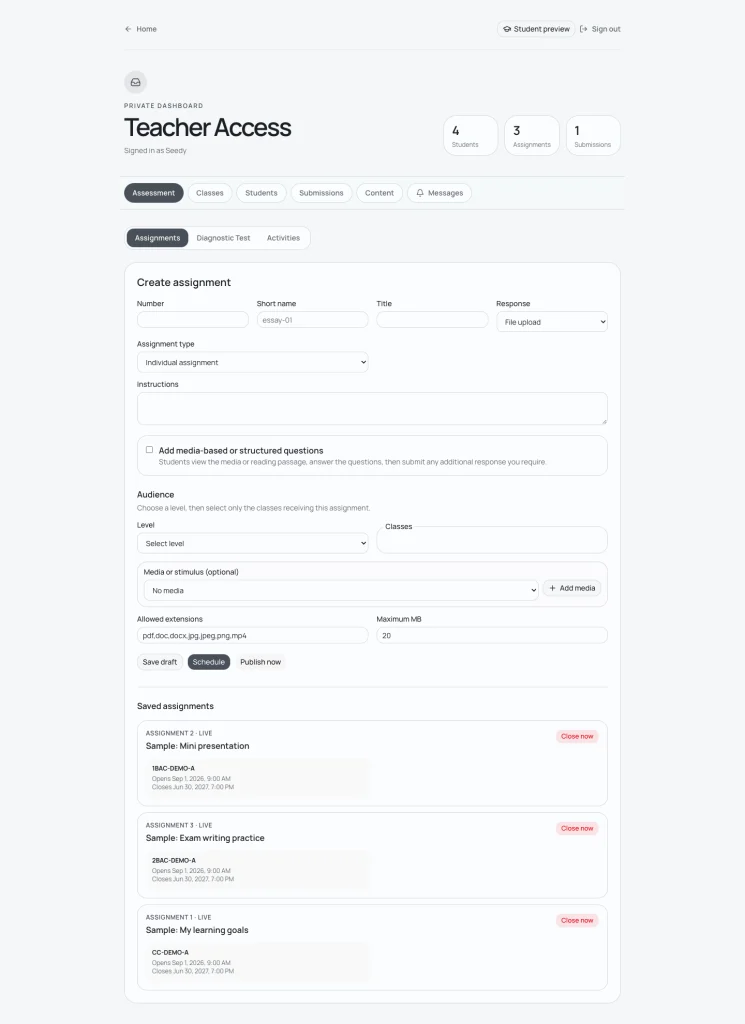
The assignment workspace lets me create, schedule, publish, and review class-specific work.
Reviewing submissions
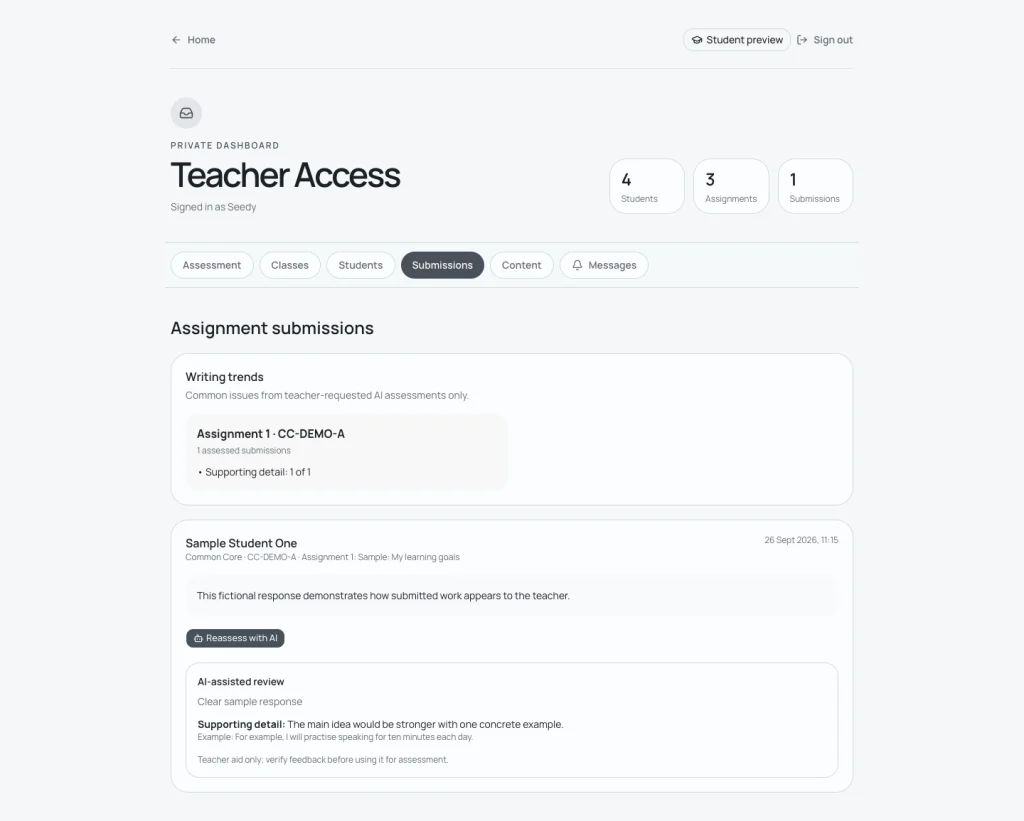
Student work is collected in one review area instead of arriving through multiple unrelated channels.
I can see the student or group, class, assignment, written response or uploaded file, submission time, and assessment status.
That organization is one of the main reasons the Hub exists. Collecting work is easy. Keeping it connected to the correct student, class, assignment, deadline, and feedback is where the administrative mess usually begins.
Publishing resources and announcements
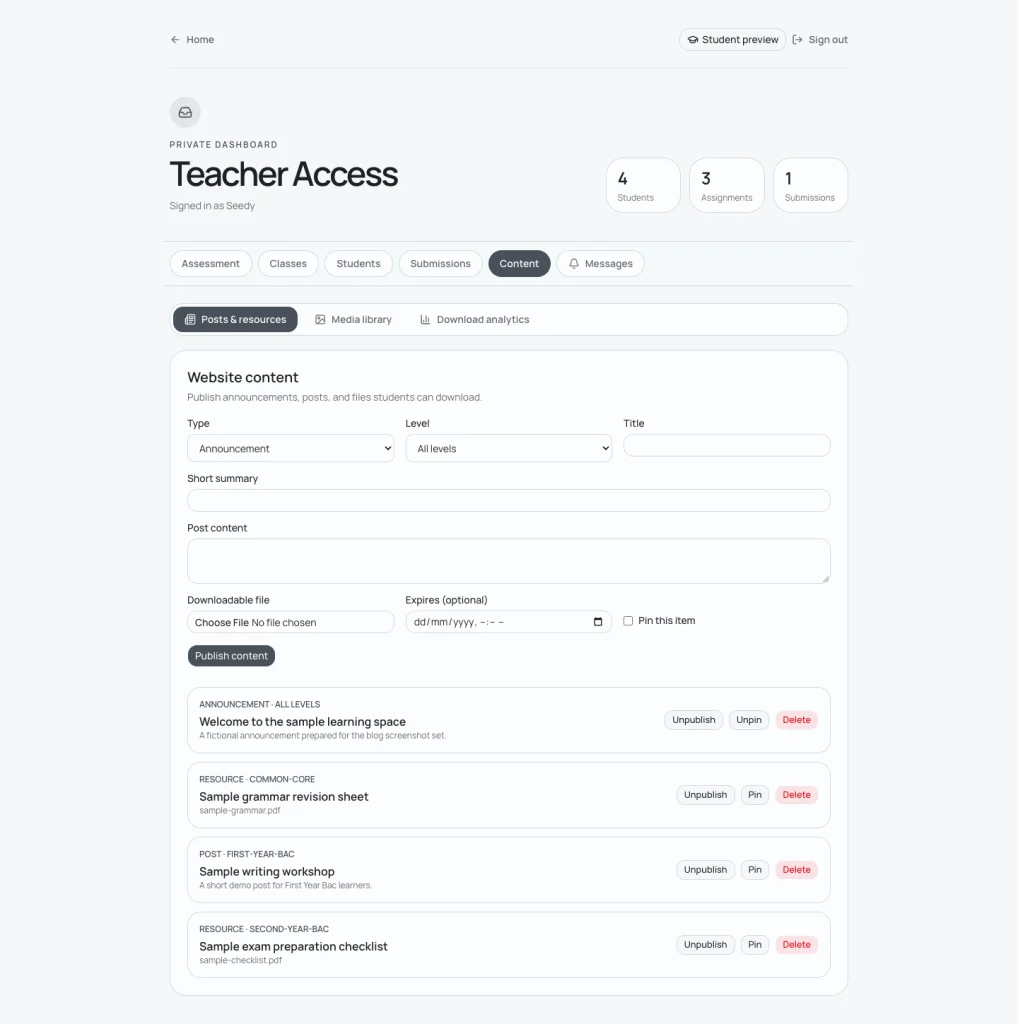
The dashboard also manages more than assignment files. I can publish short announcements, longer posts, worksheets, revision guides, downloadable resources, and reusable media. Content can be aimed at one school level or shared more broadly depending on who actually needs it.
That makes the Hub useful as a central information space as well as an assignment system. A resource does not have to be attached to a task before it is worth sharing. Sometimes students simply need the worksheet, revision material, explanation, announcement, or file to be somewhere predictable.
Resources can also include explanatory text and accessibility information, and I can see download activity for material that has been shared.
Again, none of this is particularly revolutionary. That is not the goal.
The goal is to remove small sources of friction from my own workflow and give students a consistent place to look.
Messages and access
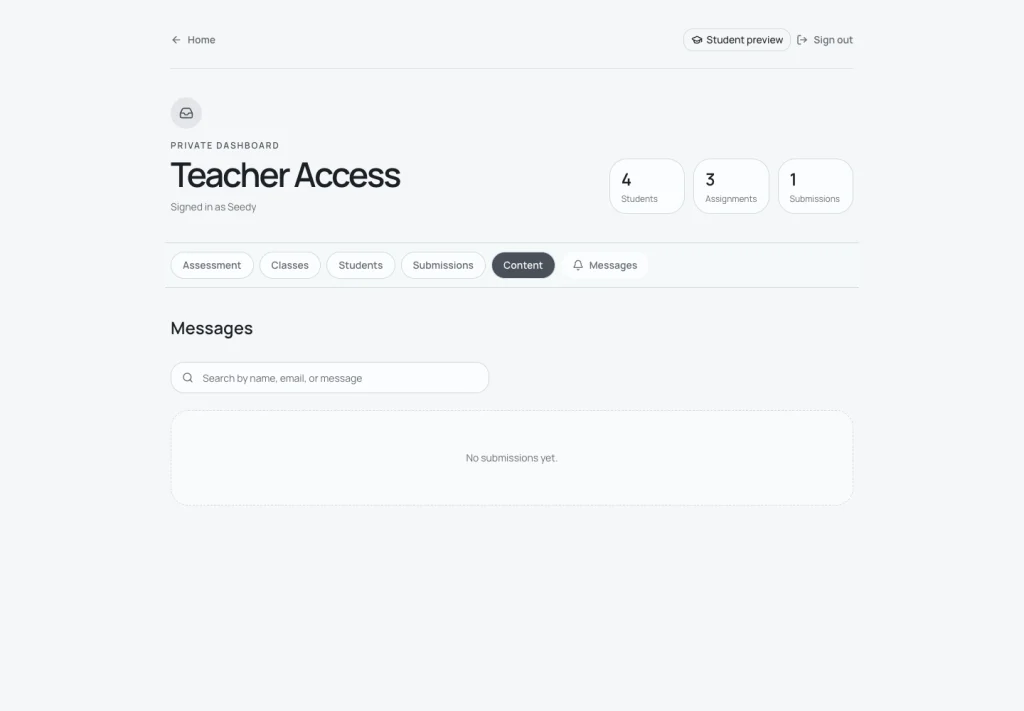
The Hub also includes a public contact form. Messages submitted there appear in the private dashboard with unread indicators.
The same administrative area includes teacher-device management, allowing connected devices to be reviewed or revoked.
Built for this, not built to be bigger
I do not want to make the Learning Hub bigger simply for the sake of making it bigger. It is tailor-made for a specific use case, with specific students and specific problems in mind. What stays, what gets tweaked, and what eventually gets replaced entirely will depend on how it works when people actually use it.
That also connects to something I will return to much more critically in an upcoming post, The View from the Bottom. Technology in the classroom does not begin and end with putting a projector in the room. A projector can be useful, but technology becomes much more interesting when it solves an actual problem, changes what students can access, or makes part of the work easier to manage. The Learning Hub is one attempt at doing that within the constraints I actually deal with.
The Hub is still a work in progress. Student use and feedback will determine what I change, what I refine, and what turns out not to be worth keeping. Its job is not to replace the classroom. It is to make learning around that classroom more accessible and give me tools that fit the work I am actually doing.
Explore the Learning Hub
You can visit the Learning Hub at:
The public side lets you see how the three school levels are organized and how the student-facing experience works.
The teacher dashboard remains private, but the screenshots in this post show the main systems behind it.